How to Stream Bluetooth Music in Audi MMI 2G and MMI 3G

Many older Audi vehicles support Bluetooth telephone calls but cannot play music wirelessly from a smartphone. This is common in cars equipped with MMI 2G, MMI 3G Basic and MMI 3G High.
The phone may pair correctly for calls, yet Spotify, YouTube Music, podcasts and other audio remain unavailable through the factory Bluetooth connection. This is not usually a fault. These systems were designed before Bluetooth audio streaming became standard equipment.
A dedicated Bluetooth or AUX interface can add modern audio playback while retaining the original Audi display, controls and sound system.

Why Can My Audi Make Bluetooth Calls but Not Play Music?
Bluetooth calling and Bluetooth music use different communication profiles.
Older Audi telephone modules commonly support hands-free calling but not the A2DP profile required for stereo music streaming. This means the vehicle can display contacts and handle calls while being unable to receive music from the same phone.
Updating the MMI firmware does not normally add missing Bluetooth audio hardware. If the installed system does not support A2DP, a separate adapter or interface is required.
Which Audi MMI Systems Can Be Upgraded?
The interface described here can be suitable for selected vehicles equipped with:
- Audi MMI 2G Basic;
- Audi MMI 2G High;
- Audi MMI 3G Basic;
- Audi MMI 3G High.
Compatibility depends on the equipment installed in the individual vehicle. The Audi model and production year alone are not sufficient to identify the correct adapter.
Before ordering anything, verify the installed infotainment system and inspect the equipment inside the glovebox.
Important Requirement: Factory CD Changer Connection
This solution uses the connection associated with the factory CD changer or the corresponding media input.
Depending on the interface and MMI generation, the adapter may connect through the existing CD changer wiring or the vehicle’s MOST fibre-optic network. MOST is the optical communication system used by many Audi infotainment components.
Your vehicle must therefore have the required CD changer installation or compatible wiring. Do not assume that every MMI 2G or MMI 3G vehicle has the same connections.
If the car does not have the required equipment, additional wiring or a different type of adapter may be necessary.
What Functions Can the Interface Add?
Depending on the selected version, the interface may provide:
- wireless Bluetooth music streaming;
- AUX audio input;
- USB music playback;
- integration with the factory Audi sound system;
- automatic reconnection to a previously paired phone;
- basic playback control through the MMI or steering wheel.
The exact functions vary between interfaces. Some devices provide audio only, while others can also display track information or allow songs to be changed using the factory controls.
Check the specification of the individual product before purchase.
Bluetooth, AUX or USB: Which Option Is Best?
Bluetooth streaming
Bluetooth is usually the most convenient option for everyday use. Once paired, the phone can reconnect automatically and play audio from Spotify, YouTube Music, internet radio, podcasts or locally stored files.
Audio quality depends on the interface and Bluetooth codec, but a good adapter normally provides considerably better usability than relying on a portable speaker or FM transmitter.
AUX input
AUX provides a direct analogue audio connection. It is compatible with many audio sources, but playback must usually be controlled from the connected device.
Track names and playlists are not normally displayed through a basic AUX connection.
USB playback
A compatible USB interface can play music stored on a USB drive. Supported storage sizes, folder structures and audio formats depend on the adapter and MMI system.
USB playback should not be confused with Apple CarPlay or Android Auto. A USB music interface does not automatically provide smartphone projection.
How Is the Bluetooth Interface Installed?
The exact procedure depends on the Audi model, MMI generation and interface version, but the general installation process is as follows:
- Switch off the ignition and allow the MMI system to shut down.
- Locate the factory CD changer or media equipment, usually inside the glovebox.
- Remove the CD changer far enough to access its connectors.
- Connect the adapter to the supplied wiring harness.
- If the interface uses MOST fibre optics, transfer or connect the optical cable exactly as shown in the product instructions.
- Connect power and ground where required.
- Position the Bluetooth module securely behind the glovebox or trim.
- Reinstall the CD changer and removed trim.
- Switch on the MMI and select the appropriate media or CD changer source.
- Pair the smartphone with the new Bluetooth interface.
- Test audio playback before completing the installation.
Do not sharply bend the orange MOST fibre-optic cable. A damaged or disconnected fibre loop can cause multiple MMI components to disappear and may prevent the infotainment system from starting correctly.
Will the Original CD Changer Still Work?
This depends on the interface and how it is connected.
Some adapters replace the factory CD changer as the selected audio source. Others use a pass-through connection or allow the original changer to remain installed.
Check the product description before installation if retaining the CD changer is important.
Will the Adapter Work with Bose or Bang & Olufsen?
The interface supplies audio to the existing MMI system, so the vehicle continues to use its factory amplifier and speakers.
However, compatibility should still be checked for the specific MMI generation and installation method. Bose or Bang & Olufsen systems often use the MOST network, making correct fibre-optic installation particularly important.
Is Coding Required?
Some interfaces are detected as an existing CD changer or media source and do not require additional coding. Others may require the relevant source to be enabled in the MMI configuration.
The requirement depends on the vehicle and adapter. Do not change diagnostic coding unless the installation instructions explicitly require it.
Does This Add Apple CarPlay or Android Auto?
No. A Bluetooth, AUX or USB music interface is designed primarily for audio playback.
It does not provide the complete Apple CarPlay or Android Auto interface, including applications, navigation, messages and screen integration.
For full smartphone integration, a compatible CarPlay and Android Auto retrofit module or supported software activation is required.
Common Problems After Installation
The new audio source does not appear
Check the power supply, wiring harness and MOST fibre-optic connection. Confirm that the adapter is compatible with the installed MMI system.
The MMI system does not start
Inspect the MOST optical loop immediately. Every component in the loop must be connected correctly. An open fibre-optic circuit can prevent the MMI network from operating.
The phone connects but there is no sound
Make sure the correct media source is selected, increase the volume on the phone and MMI, and verify that media audio is enabled in the phone’s Bluetooth settings.
Music plays but telephone calls use another Bluetooth connection
This can be normal. The factory Audi telephone system may continue to handle calls while the new adapter handles music streaming.
There is interference or poor audio quality
Check the power and ground connections, audio cable routing and phone volume. Poor-quality adapters can also introduce noise or compression.
Check Your MMI Before Ordering
Audi installed different infotainment configurations within the same model and production year. Identifying the system from the car model alone can therefore result in ordering the wrong interface.
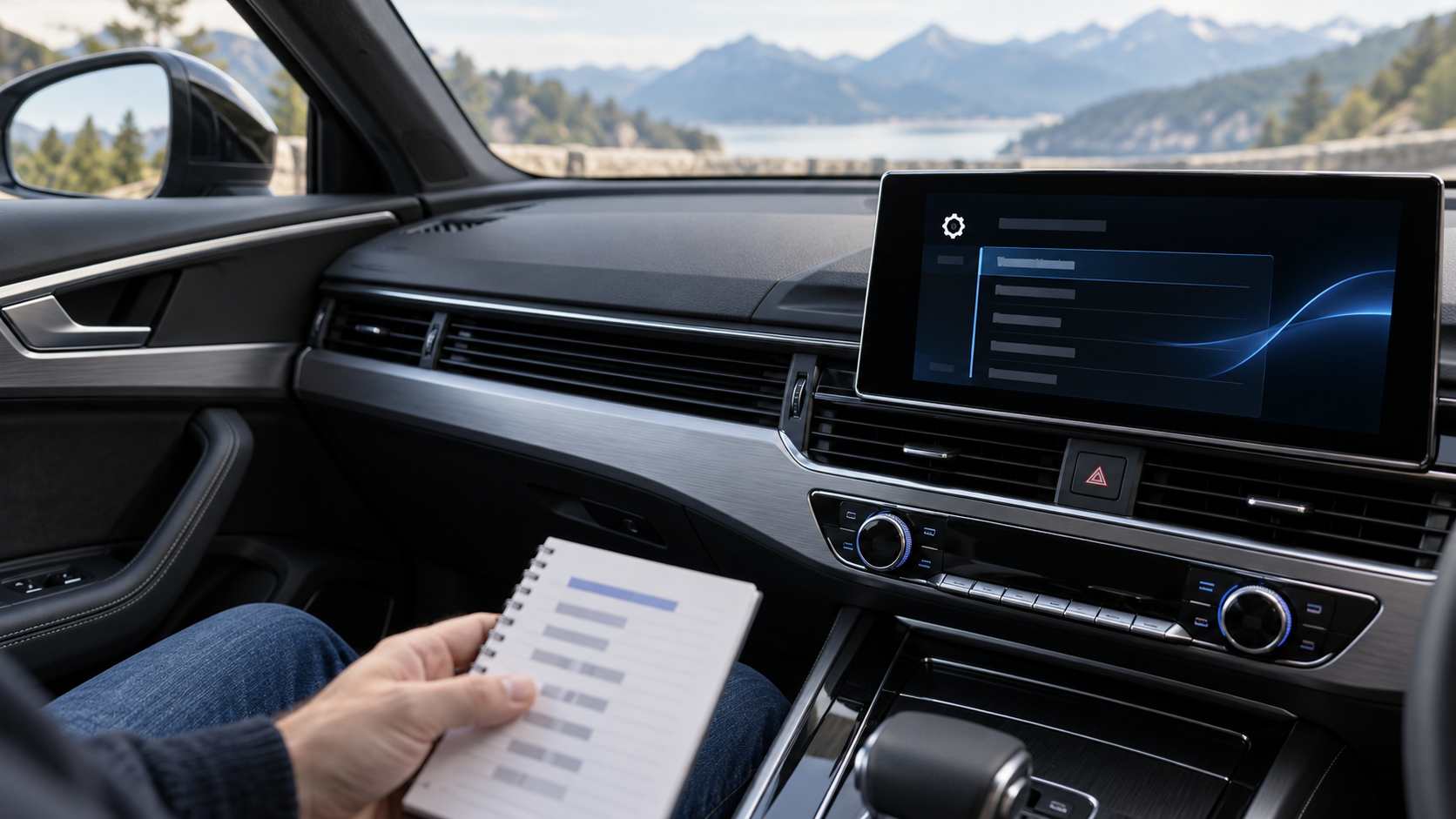
Check the software version displayed in the MMI menu and photograph the equipment and connectors inside the glovebox. This makes it easier to confirm whether the vehicle has MMI 2G, MMI 3G Basic, MMI 3G High or another system.
Bluetooth and AUX Interface for Audi MMI 2G and MMI 3G
A compatible interface for selected MMI 2G vehicles is available here:
and for MMI 3G:
Confirm the installed MMI version and CD changer connection before ordering.

0 comments
Sign in or create an account to leave a comment →