Audi MMI 3G Apple CarPlay & Android Auto Module Installation Guide
This step-by-step installation guide explains how to install our Apple CarPlay and Android Auto hardware interface in Audi vehicles equipped with MMI 3G Basic, MMI 3G High or MMI 3G Plus.
The installation covers the physical module connection, LVDS wiring, main MMI harness, DIP switch configuration, AUX audio activation, Wi-Fi antenna placement and USB extension routing.
This guide is for a hardware CarPlay / Android Auto retrofit. If your Audi has a compatible MIB2 MHI2 or MHI2Q system, CarPlay may instead be activated through software without installing this external interface.
Not sure which MMI system you have? Check your MMI version before starting:
https://mmiupdates.com/tutorials/how-to-check-what-mmi-do-i-have-mmi-2g-3g-3g-types-of-audi-navigation-systems/
This is installation manual for our Wireless module Apple CarPlay / Android Auto
Step 1 – Check the CarPlay Module Components


Step 2 – Review the MMI 3G Installation Diagram

More detailed installation
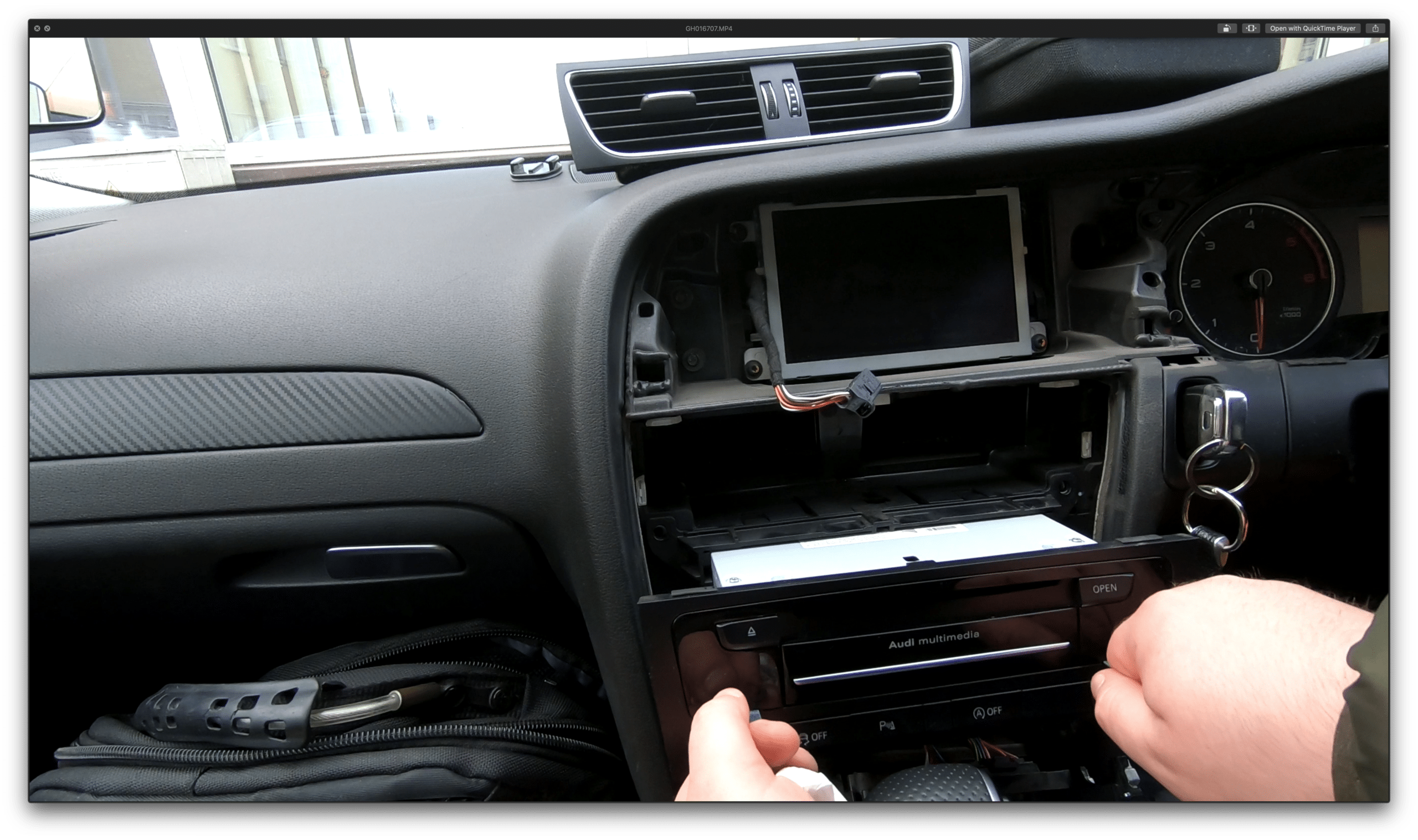
Step 3 – Remove the MMI Unit and Climate Control Panel
Need to pull off main MMI unit and climate control panel.

To do this you’ll need audi/vw radio removal tools :

Insert that keys on two holes on booth sides - when you hear “click” you can pull off that unit.


To remove climate control panel just grab it and pull (there’s no screws, it just hold on the clips.
NOTE: DO NOT NEED TO REMOVE AIRVENTS / SILVER TRIM AROUND SCREEN / CLOCKS.
Step 4 – Connect the MMI Harness and LVDS Cables

RED CIRCLE
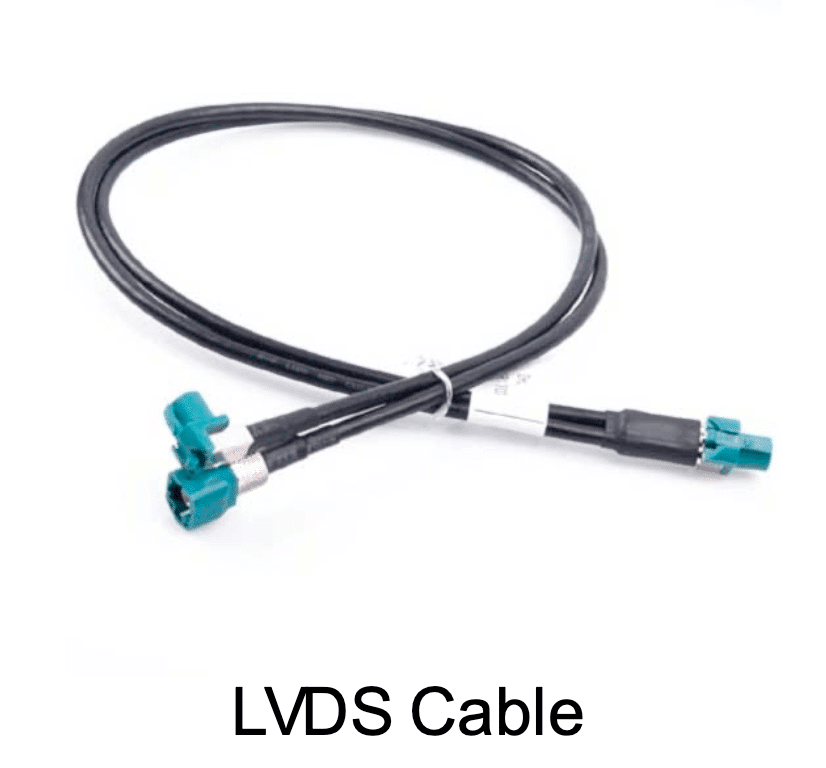
Connect LVDS cable, one end here, one to the device and last to the wire which has been connected to the MMI.
GREEN SQUARE
There’s going main harnes. One end to the MMI, one to old MMI connector (which was connected before with central mmi unit), one end to the box,
YELLOW SQUARE (BOTTOM PHOTO)
It's going to the Apple CarPlay / Android Auto module.
BLACK SQUARE (BOTTOM PHOTO)
Connect them together.

BLUE SQUARE (TOP & BOTTOM PHOTO)
This one is going to the climate panel. Just plug off and connect one to the panel, other end to old cable.

Step 5 – Configure the DIP Switches
Before you will test module, make sure that dip switch is correctly set.

So if you have AUDI A4 2014 you dip switch should looks like:
1 - OFF
2 - OFF
3 - OFF
4 - OFF
5 - OFF
6 - OFF
7 - ON (if you have parking enabling button in climate panel)
8 - ON (if you car is equipped with bluetooth system).
BE AWARE!! WE ARE ALWAYS ATTACH CORRECT DIP SWITCH SCHEME WITH YOUR UNIT, PLEASE DO NOT BASED ON DIP SWITCH SCHEME FROM THIS MANUAL HERE, ONLY TO ATTACHED PAPER.
DIP SWITCH MMI Mib1 / Mib2

Step 6 – Enable AUX Audio for the CarPlay Module
If you have already tested system, you might noticed that there’s no sound.. If you car is equipped with AMI port in glovebox now we will enable AUX - but no worries do not need connect anything to the AUX It must be enabled for our box - it will be already connected to the AUX by CAN.
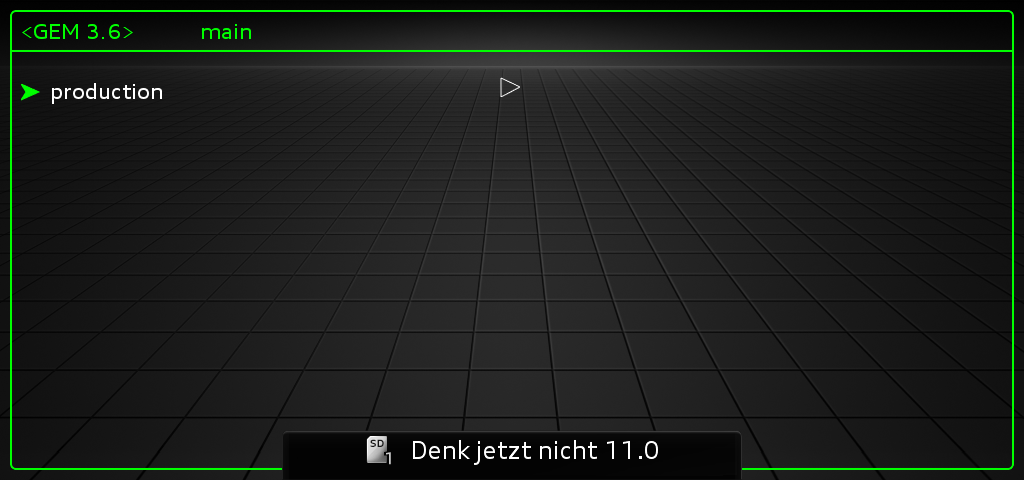
You need Hidden Green Menu access - if you don’t have, here we got solution - CLICK.
Audi MMI 3G AUX activation procedure.
1. Turn key into II position and wait for the MMI 3G system to start. You can also use keyless buttons.
2. Wait around 5 minutes and press and hold buttons MENU(or SETUP) and CAR.
3. After couple of seconds hidden green menu will appear. You can now release the buttons.
4. Navigate to diagnose → settings → AMI/AUX.
5. Change the value of “AUX” “disabled” to “enabled” preserving other options.

6. Press RETURN and CAR buttons at the same time to exit hidden green menu.
7. Restart the MMI

If you are using Apple CarPlay / Android Auto module please remember to set media source as AUX!
Step 7 – Install the Wi-Fi Antenna and USB Extension
Antenna has quite strong signal, it can be hidden with box behind unit, or if you wish you can stick it to under gear selector.
For USB we recommend use extension lead and drag to the armrest.

Disassembly of the central tunnel


Now you can drag wifi antenna to the main tunnel and stick on to side of the tunnel.
Similar with USB extension lead but you can drag it near seat straight to the armrest.
Step 8 – Test Apple CarPlay and Android Auto
Now you can test module if it works. Start MMI, wait few seconds and push and hold NAV button for few seconds (you should hear CLICK sound from the box) on mmi you should see that module has started.
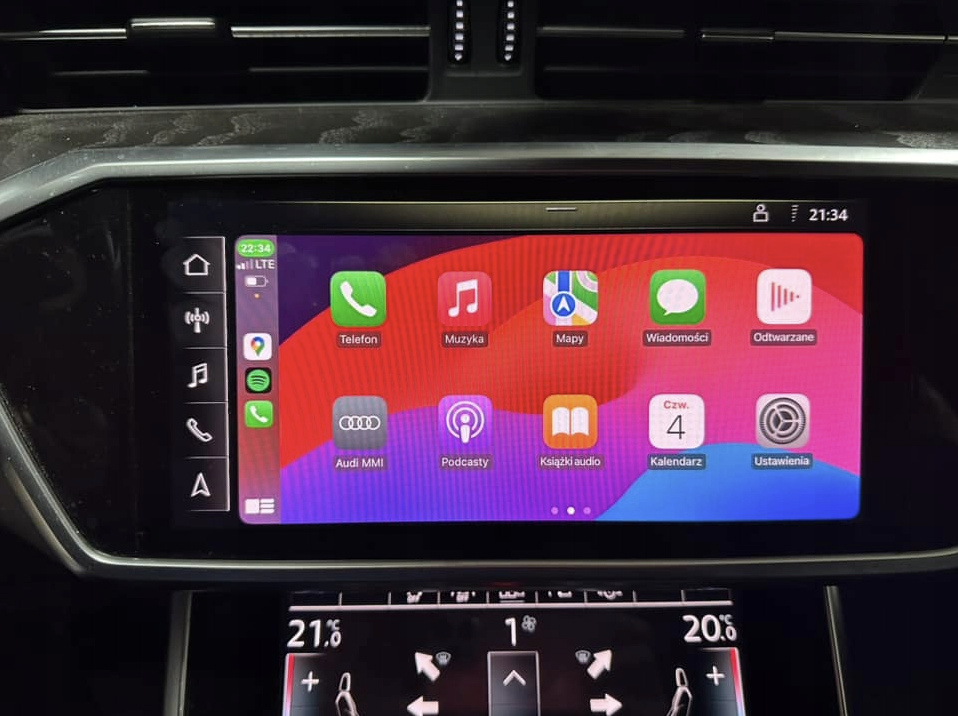
On the screen you’ll see Wireless its for wireless apple carplay, you can connect there your iPhone (all details to connect should be there).
Wired - it’s for wired connection and should works straight after you connect your android / iPhone via usb cable.
Settings



11 comments
Following is unclear: Where or what is the Car Play module that the Yellow Box connector fits? And what is Tool #3409 for removing the gear shift boot?
Hej, do you mean this one? it has to be connected in to carplay box what you received from us, there's only one place where it fit. about tool 3409 it's an plastic trim removal for example
Thanks - my kit has not arrived yet and there is no picture of a Car Play Module in the group provided with this tutorial. Just 2 cables, a harness and an antenna? Thanks for the interior fitting tools picture - a must have these days for anyone who fools around with interior components.
ahh you are right.. as soon as get one in my hands will update this tutorial..
Hi, I cannot connect the reverse camera. It seems to power is going out of the Car Play module when I’m putting the rear gear ! Any tips from your side ?
Sorry, my previous message is confusing : I don't get the specific screen when I put the Rear Gear. has anyone already connected a camera with the Car play module. Probably I missed something in green menu or somewhere else to activate the Reverse Camera...
Hi Olivier, not sure where form you got your module, but in ours there are cables which has to be connected: 12V reverse camera - need to take a signal somewhere from car, which giving informations that you put gearbox in reverse mode. Back in - RCA cable to send video from camera to module and setup correct…
Hi, Do you have manual how to connect Apple CarPlay in PDF? Can You sens me?
unfortunately we don't have, only online manuals.
Hi! I have exactly this box on my Audi A4 Allroad B8 2011 MMI 3g low and done all of the steps described. On the last few months I’ve been having some problems with the battery draining to fast and the VCDS shows several errors (https://ibb.co/PxrZT3C). I tried to remove the box and the MMI went all black. Plugged it…
Hi, it's hard to say as we do not have that problems with our modules, only plug & play with cables as well as climatronic cable - all cables I mean climatronic cable, quadlock, screen cable.. Maybe your unit it's broken? but it should go "sleep" with mmi.. I would suggest to contact with box seller, maybe they have…
Sign in or create an account to leave a comment →