How to Activate Bluetooth HFP on Audi MMI 3G
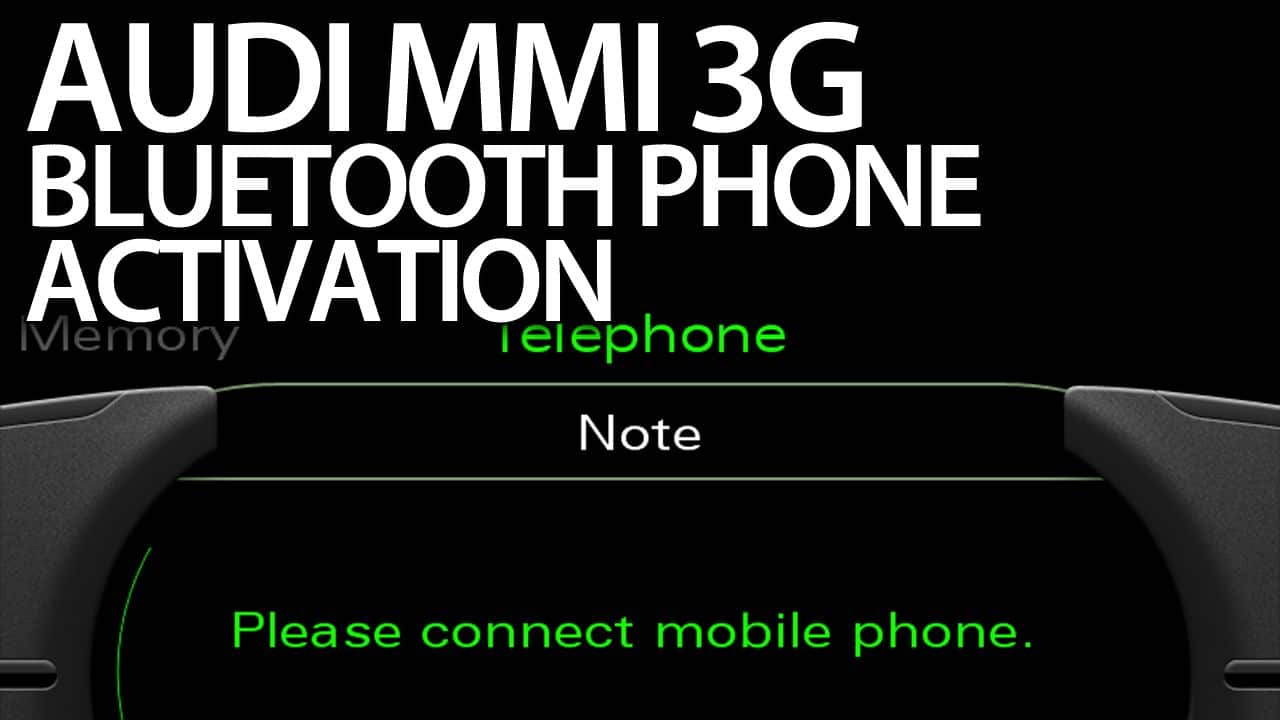
This tutorial explains how to activate Bluetooth HFP on a compatible Audi MMI 3G system using the hidden Green Menu and VCDS.
HFP means Hands-Free Profile. It allows a compatible mobile phone to connect to the vehicle for telephone calls through the factory hands-free system.
This procedure does not activate Bluetooth music streaming.
HFP versus Bluetooth music streaming
Bluetooth can use several different profiles.
HFP - Hands-Free Profile
Used for:
- making and receiving calls,
- accessing supported telephone functions,
- routing call audio through the vehicle,
- using the factory microphone.
A2DP - Advanced Audio Distribution Profile
Used for:
- streaming music,
- playing podcasts,
- other stereo audio from a phone.
Activating HFP does not add A2DP support. If telephone calls work but there is no Bluetooth Audio source in the Media menu, this procedure will not necessarily enable music streaming.
Compatibility requirements
Continue only when the vehicle has:
- a compatible Audi MMI 3G system,
- supported telephone hardware,
- a working factory microphone and audio path,
- access to the MMI hidden Green Menu,
- a compatible VCDS diagnostic interface.
Do not assume compatibility based only on the Audi model or production year.
Check the complete MMI software version first:
This procedure does not apply to MMI 2G, RMC, MIB1, MIB2 or MIB3.
Tools required
You will need:
- a compatible VCDS diagnostic interface,
- a Windows computer running VCDS,
- access to the MMI 3G hidden Green Menu.
Save a complete VCDS Auto-Scan before making changes. Photograph or record the original Green Menu configuration and the original adaptation value.
Important warning
Incorrect settings in the hidden Green Menu or VCDS can disable functions or cause unexpected MMI behaviour.
Change only the options described below. Do not alter WLAN, NAD or unrelated telephone parameters.
If the menu displayed by your MMI does not match this tutorial, stop and verify the exact hardware and software version.
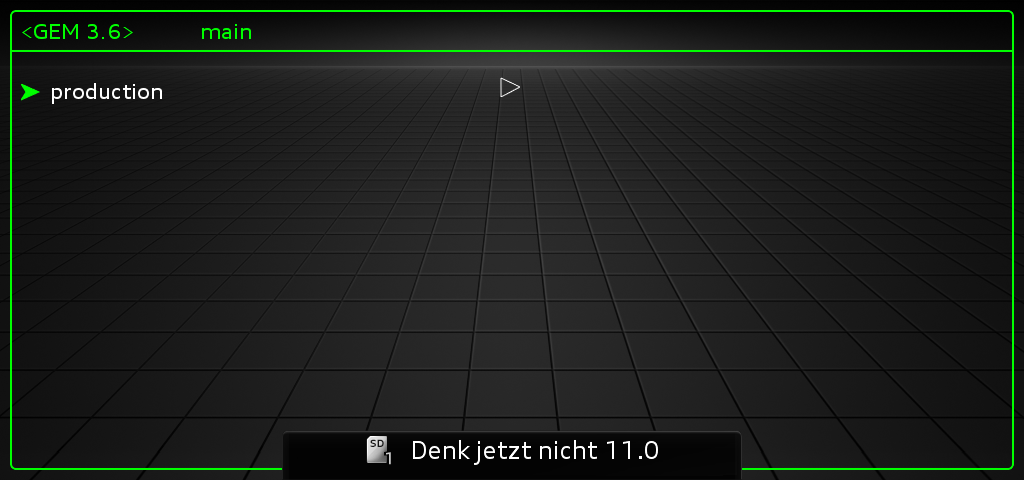
Enable access to the Green Menu
The hidden Green Menu must already be enabled before continuing.
Instructions are available here:
Enabling access to the Green Menu does not automatically activate Bluetooth HFP. It only makes the required configuration page accessible.
Step 1: Open the MMI 3G Green Menu
- Switch on the ignition.
- Wait until MMI 3G has fully started.
- Press and hold SETUP and CAR simultaneously.
- Release the buttons when the hidden Green Menu appears.
Some control panels use a different button combination. Continue only if the displayed menu matches the MMI 3G Green Menu shown in this tutorial.

Step 2: Open the telephone settings
In the Green Menu, navigate to:
diagnose → settings → Tel settings misc
Read and record the existing configuration before changing it.
Step 3: Enable BT and HFP
In the telephone configuration:
- leave WLAN unchanged,
- leave NAD unchanged,
- change noBT to BT,
- change noHFP to HFP.
Do not change any other parameters.
The intended change is therefore:
noBT→BTnoHFP→HFP
WLAN and NAD must retain their original states.
Step 4: Exit the Green Menu
Press RETURN and CAR to leave the hidden Green Menu.
Allow the MMI to return to its normal interface.
Step 5: Change VCDS adaptation channel 17
Connect VCDS correctly and open:
Select Control Module → 5F - Information Electr. / Infotainment
Then select:
Adaptation - 10
Open:
Channel 17
Record the original value.
For the compatible system documented in this tutorial, change:
0 → 1
Save the new value and confirm that the control module accepts it.
Do not use channel 17 blindly if VCDS identifies it differently or if the control-module layout does not match this procedure.
Step 6: Restart MMI 3G
After saving the adaptation value, disconnect VCDS correctly and restart MMI.
On many MMI 3G control panels, the restart combination is:
- SETUP,
- the centre control knob,
- the upper-right soft key.
Press all three simultaneously until the MMI display switches off and the system restarts.
Button layouts can differ. Use the correct restart procedure for the installed MMI control panel.
Step 7: Pair the phone
After MMI has restarted:
- Open the telephone menu.
- Enable Bluetooth visibility if required.
- Open Bluetooth settings on the phone.
- Search for available devices.
- Select the Audi MMI system.
- Confirm that the pairing code matches on both devices.
- Allow access to contacts and call history if desired.
- Make a test call.
Check that call audio is played through the vehicle and that the factory microphone works.
Bluetooth is enabled but the phone cannot pair
Check:
- Bluetooth is enabled in the Green Menu,
- HFP is enabled,
- adaptation channel 17 contains the expected value,
- the changes were accepted successfully,
- MMI was restarted after coding,
- old phone pairings have been removed if the memory is full,
- Bluetooth visibility is active,
- the phone is not already connected to another vehicle,
- the factory telephone hardware and microphone are present.
Restart both the phone and MMI before repeating the pairing process.
Channel 17 already contains value 1
If channel 17 already contains 1, do not repeatedly save the same value.
Check the Green Menu configuration and confirm that:
BTis selected instead ofnoBT,HFPis selected instead ofnoHFP,- WLAN and NAD retain their original settings.
If these values are correct but Bluetooth remains unavailable, the problem may involve incompatible hardware, missing telephone equipment, stored faults or another configuration issue.
Run a VCDS Auto-Scan and check module 5F for faults.
Why Bluetooth music is still unavailable
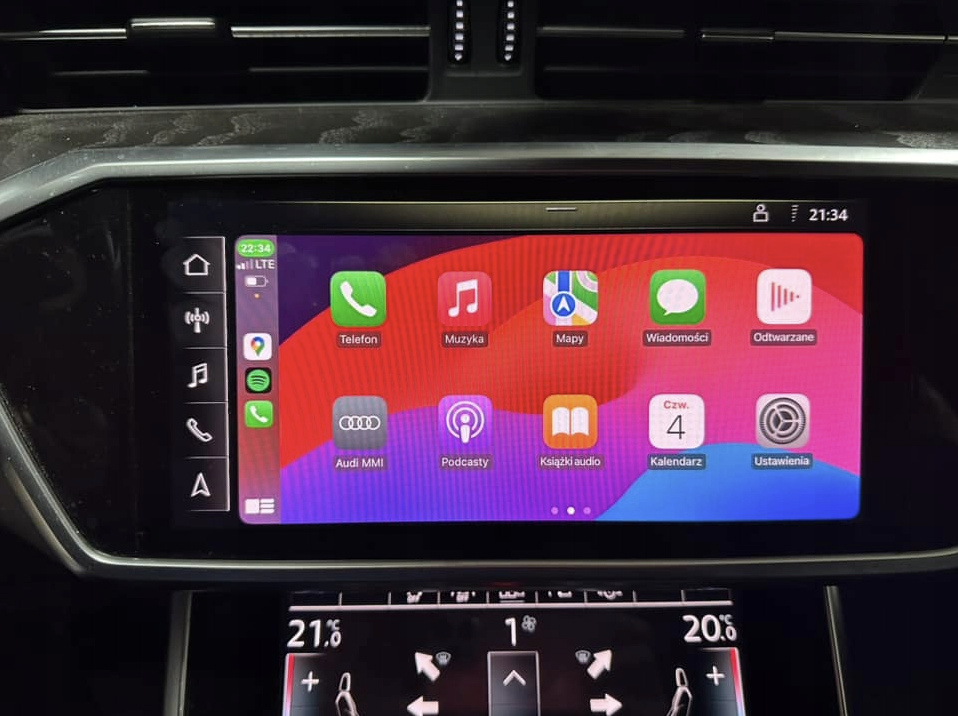
This tutorial activates HFP for telephone calls. It does not guarantee support for A2DP music streaming.
A vehicle may support:
- Bluetooth telephone calls but not music,
- music through an AMI adapter,
- music through an external Bluetooth interface,
- factory A2DP only on a different MMI version.
Do not repeatedly change telephone coding in an attempt to create an unsupported Bluetooth Audio source.
Restoring the original configuration
If Bluetooth or another telephone function behaves incorrectly:
- Restore the original channel 17 value.
- Restore the original Green Menu telephone configuration.
- Restart MMI.
- Run another VCDS Auto-Scan.
- Confirm that the original functions have returned.
Always use the configuration recorded before starting the modification.
Procedure summary
For the compatible MMI 3G system documented here:
- Open the Green Menu with SETUP + CAR.
- Navigate to diagnose → settings → Tel settings misc.
- Leave WLAN and NAD unchanged.
- Change
noBTtoBT. - Change
noHFPtoHFP. - Exit the Green Menu.
- Open VCDS module 5F.
- Select Adaptation - 10.
- Change channel 17 from
0to1. - Save the value.
- Restart MMI.
- Pair the phone and test a call.
This activates HFP on compatible hardware. It is not an A2DP Bluetooth music activation procedure.

3 comments
try to update my a7 mmi with the latest update from you it will not work. . loaded on usb but will not recognize it
Did you get to the engineering menu and tried an update from there? all firmware files must be in root folder on sdcard/memory stick. Otherwise MMI will not recognize it.
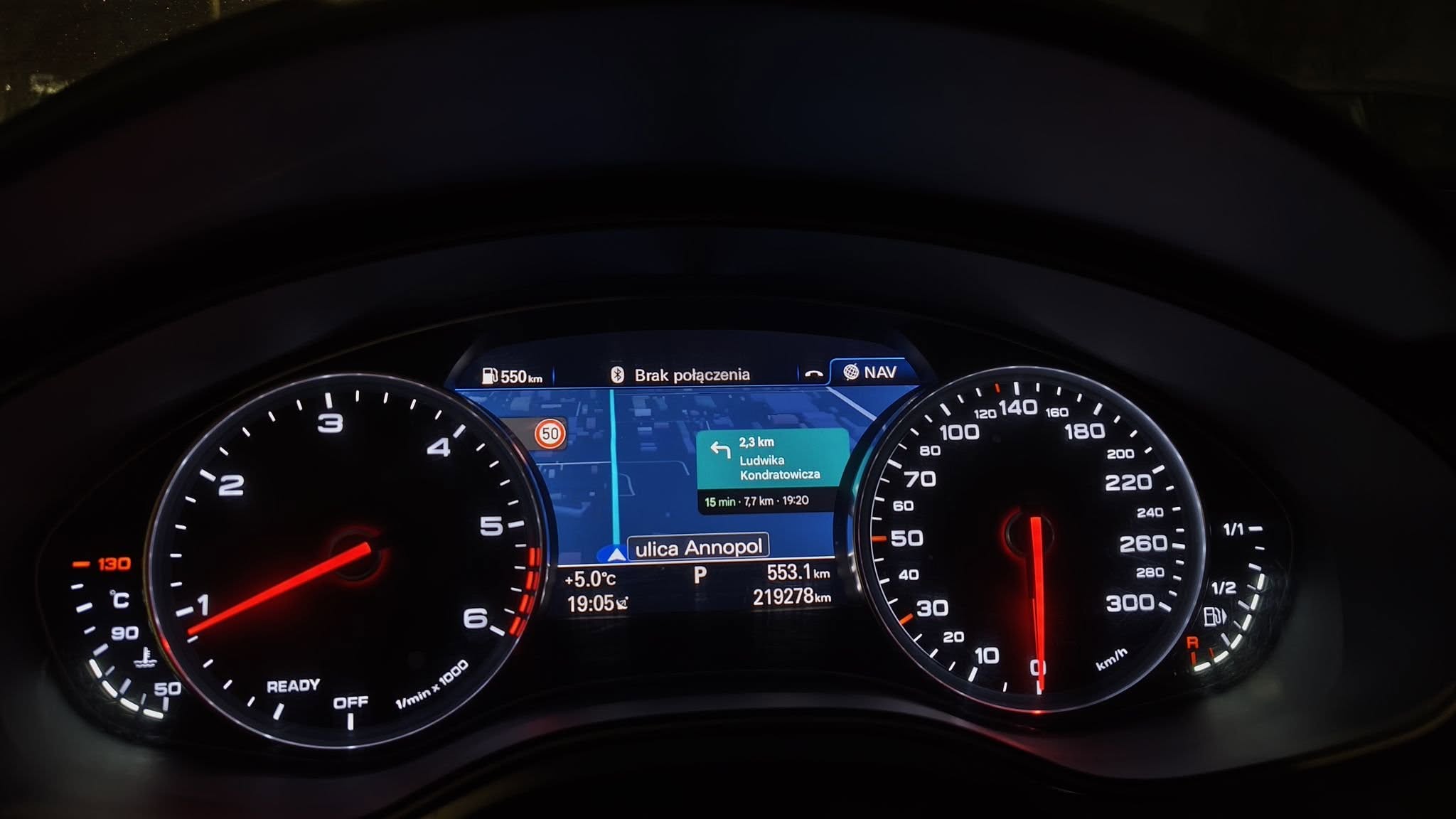
Hello, I have disable my bluetooth and I can't active it. I have the last firmware version and in the channel 17 I have the value 1.
Sign in or create an account to leave a comment →