Audi Jukebox - How to Copy Music to the MMI Hard Drive
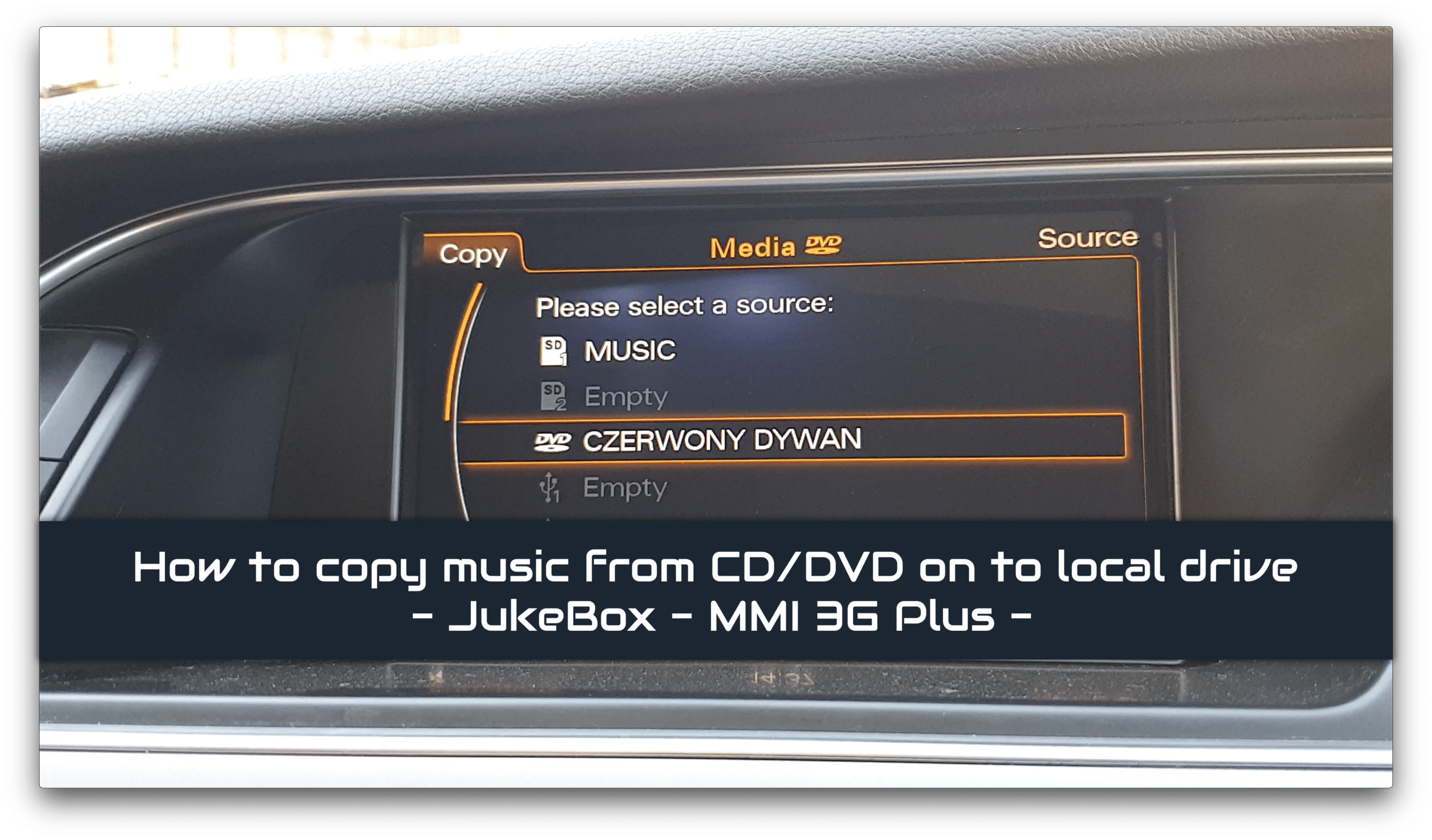
Audi Jukebox is an internal media storage function available in compatible MMI systems. It allows music to be copied from supported media to the MMI hard drive, so the files can be played without leaving a CD, DVD or SD card in the car.
On the MMI 3G Plus system covered by this tutorial, approximately 10 GB of the internal drive is available for Jukebox media. The actual amount of free space displayed may be lower if music has already been stored.
What Is Audi Jukebox?
Audi Jukebox is the name used for the part of the MMI internal hard drive reserved for personal media.
Music can be imported from compatible sources such as:
- an SD card,
- a data CD,
- a data DVD,
- supported media connected to the MMI.
Once copied, the tracks are available through the MEDIA menu without reconnecting the original storage device.
Audi Jukebox is different from the navigation database. Deleting music from the Jukebox does not remove the navigation maps.
Which Audi MMI Systems Have Jukebox?
This guide documents the procedure used with Audi MMI 3G Plus.
The Jukebox function may also appear in some other Audi infotainment systems, but menu names, available capacity and supported media formats can differ.
If the Jukebox option is missing, first confirm which MMI system is installed. Do not assume that every Audi with an SD card slot or internal navigation has Jukebox storage.
How to Copy Music to Audi Jukebox
Before starting, prepare a CD, DVD or SD card containing supported music files.
Then:
- Switch on the ignition and MMI.
- Insert the CD, DVD or SD card containing the music.
- Press the MEDIA button.
- Select the inserted media source.
- Open the media settings or copying options.
- Select Fill Jukebox, Copy to Jukebox or the equivalent option displayed by your MMI.
- Select the folders or individual files you want to import.
- Choose Copy to begin the transfer.
- Follow the copying progress displayed on the MMI screen.
- Wait until the selected files have been transferred.
Depending on the MMI software, copying may continue in the background while other information is displayed.
Do not remove the source media while files are being copied.
How to Play Music Stored in Audi Jukebox
After the transfer has finished:
- Press MEDIA.
- Open the source selection menu.
- Select Jukebox.
- Browse the stored artists, albums, folders or tracks.
- Select a track to begin playback.
Available sorting options depend on the folder structure and metadata saved inside the music files.
Supported Music Files
MMI compatibility depends on the installed software version and the source being used.
Common supported audio formats may include MP3 and WMA, while some systems also recognise additional formats. The safest approach is to use standard, unprotected music files with conventional filenames.
Files protected by digital rights management may not play or copy correctly.
If a particular file is not recognised:
- verify that it plays correctly on a computer,
- check its file extension,
- remove unusual characters from the filename,
- convert it to a commonly supported audio format,
- copy it to the source media again.
Do not assume that every file format supported by a modern computer or smartphone will also be supported by MMI 3G Plus.
Audi Jukebox Capacity
MMI 3G Plus provides approximately 10 GB for Jukebox media.
The number of songs that can be stored depends on:
- file format,
- bitrate,
- track length,
- album artwork,
- and the amount of Jukebox space already in use.
Compressed MP3 files use substantially less storage than uncompressed audio.
The Jukebox allocation is fixed by the MMI system. In normal use, it cannot be expanded simply by installing a larger SD card or replacing the source media.
How to Check the Remaining Jukebox Space
Open the MEDIA menu and select the Jukebox management or fill/delete option.
Depending on the installed MMI software, the screen may show:
- used storage,
- remaining capacity,
- the number of stored files,
- or a progress indicator during copying.
If there is insufficient free space, delete unwanted tracks or albums before importing new files.
How to Delete Music from Audi Jukebox
To remove stored music:
- Press MEDIA.
- Select Jukebox.
- Open the settings or Jukebox management menu.
- Select the delete or empty Jukebox option.
- Choose individual files, folders or the entire stored library.
- Confirm the deletion.
Selected tracks may be highlighted before the final confirmation.
Deletion affects only the copies stored in the MMI Jukebox. It does not delete the original files from the CD, DVD or SD card.
Clear the Jukebox Before Selling the Car
Delete the stored media before selling or transferring the vehicle.
Music files may contain:
- filenames,
- folder names,
- artist and album information,
- playlists,
- and other personal organisation data.
Use the option to empty the entire Jukebox and then verify that no personal media remains accessible through the MEDIA menu.
Organising Music with ID3 Tags
MMI can use metadata stored in compatible music files to organise the library.
Correct ID3 tags can provide:
- artist name,
- album title,
- track title,
- genre,
- track number.
If music appears under “Unknown artist” or is sorted incorrectly, edit the metadata on a computer and copy the corrected files again.
Consistent folder names and ID3 tags make a large Jukebox collection easier to browse using the MMI controls.
Audi Jukebox Is Missing
If Jukebox is not displayed as an available media source, possible reasons include:
- the installed MMI system does not support it,
- no files have been copied yet,
- the menu is located under another media-management option,
- the internal storage is unavailable,
- the MMI uses a different software version,
- or the source files are not recognised.
First confirm the installed MMI generation and check whether Fill Jukebox or Copy to Jukebox appears after selecting a supported media source.
Music Will Not Copy to Jukebox
Check the following:
- Make sure the source media is detected by the MMI.
- Confirm that the music files use a supported format.
- Check whether enough Jukebox storage remains available.
- Avoid protected or DRM-restricted files.
- Use simple folder and file names.
- Test with a standard MP3 file.
- Restart the MMI and try the transfer again.
- Try another SD card or disc if the source is read intermittently.
If the copy option remains unavailable, the selected source or installed MMI version may not support importing those files.

0 comments
Sign in or create an account to leave a comment →