How to Pair a Phone with Audi MMI 3G via Bluetooth
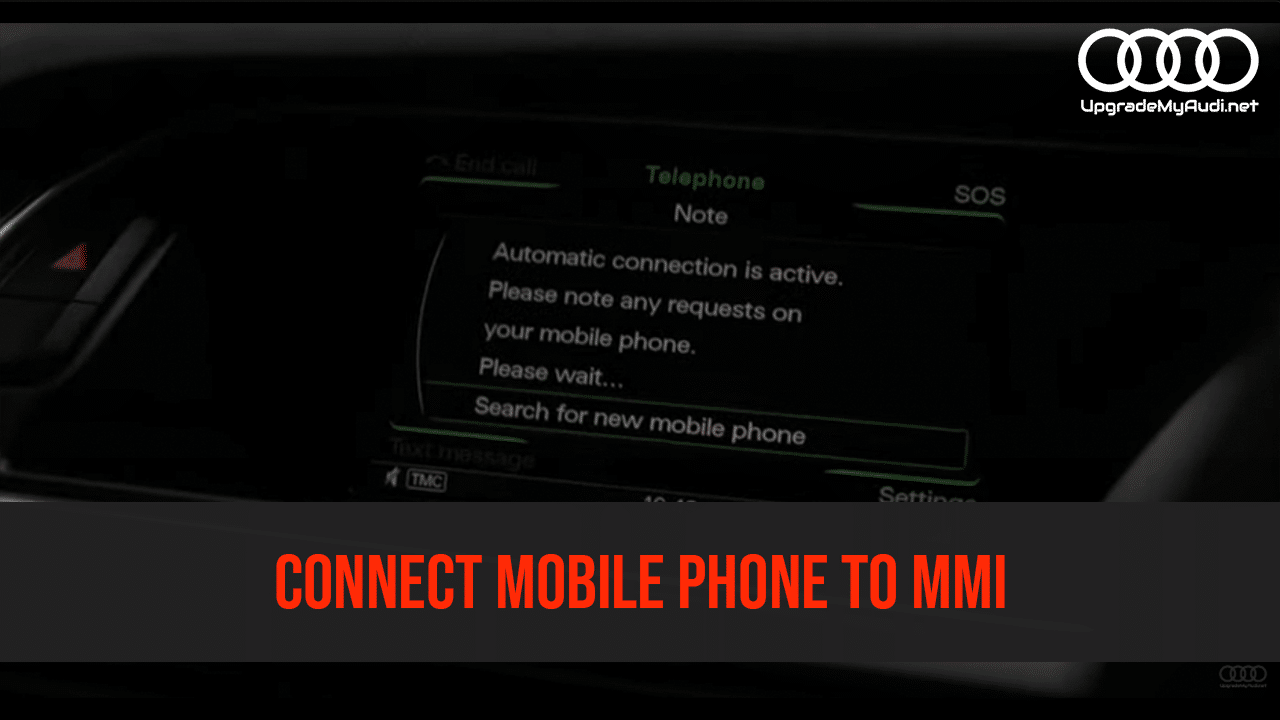
A compatible mobile phone can be paired with Audi MMI 3G through Bluetooth for hands-free calls, access to contacts and recent call lists.
Bluetooth music streaming depends on the installed MMI system and equipment:
- MMI 3G Plus can support hands-free calls and Bluetooth audio streaming.
- MMI 3G Basic and MMI 3G High normally provide Bluetooth hands-free calling but may not support factory Bluetooth music streaming.
- MMI 2G High normally requires an additional interface for Bluetooth audio.
The presence of Bluetooth calling does not automatically mean that Bluetooth music is supported.
Before Pairing the Phone
Park the vehicle safely before beginning. Keep the ignition and MMI switched on.
On the phone:
- Open Bluetooth settings.
- Switch Bluetooth on.
- Keep the Bluetooth settings screen open so that the phone remains discoverable.
- Remove an old Audi pairing if you are reconnecting the same phone after previous problems.
On the MMI, make sure telephone visibility or Bluetooth discovery is enabled where that option is available.
How to Connect a Phone to Audi MMI 3G
The exact wording may vary slightly between MMI software versions.
Start from the MMI
- Switch on the ignition and MMI.
- Press the TEL button.
- Select Search for new mobile phone or the equivalent option.
- Wait while the MMI searches for nearby Bluetooth devices.
- Select your phone from the list.
- Confirm the displayed pairing code on the MMI and phone.
- Approve access to contacts and call history on the phone.
- Wait for the connection to complete.
- Check that the phone name and network information appear in the TEL menu.
Start from the Phone
If the MMI does not find the phone:
- Open Bluetooth settings on the phone.
- Search for new devices.
- Select the Audi MMI entry. Its name may include Audi, MMI or digits identifying the vehicle.
- Confirm that the code shown on the phone matches the code displayed by the MMI.
- Accept the pairing request on both devices.
- Allow contact and call-history access.
Older software may request a PIN instead of displaying a matching confirmation code. Use the code displayed by the MMI or follow the prompt shown on both devices rather than repeatedly guessing common PINs.
Allow Contact and Call-History Access
After pairing, the phone may ask whether Audi MMI can access:
- contacts,
- favourite contacts,
- recent calls,
- phone status,
- messages on supported configurations.
Allowing contacts and call history enables the MMI phone book and recent-call list.
If calls work but contacts are missing, open the Bluetooth settings for the saved Audi connection on the phone and confirm that contact sharing is enabled.
The initial synchronisation may take several minutes when the phone contains a large address book.
Set Audi MMI as a Trusted Connection
On some Android phones, battery-saving settings can interrupt the Bluetooth connection.
Check whether the phone allows you to:
- keep the Audi connection active,
- permit background Bluetooth access,
- disable battery optimisation for Bluetooth or phone services,
- reconnect automatically to previously paired devices.
Menu names depend on the phone manufacturer and Android version.
On an iPhone, open the saved Audi Bluetooth connection and verify that the connection remains authorised. If pairing repeatedly fails, use Forget This Device and pair it again.
Making and Receiving Calls
Once the phone is connected, calls can normally be controlled through:
- the TEL menu,
- the MMI control panel,
- steering-wheel buttons,
- voice control where equipped,
- the phone itself.
The vehicle microphone and speakers are used for hands-free calls.
If the other person cannot hear you, check whether the call audio has been transferred back to the phone. Select Audi MMI as the active audio output during the call.
Can MMI 3G Play Music through Bluetooth?
This depends on the MMI version.
MMI 3G Plus
Compatible MMI 3G Plus units can support Bluetooth audio streaming through the A2DP profile.
After pairing:
- Press MEDIA.
- Open the source selection menu.
- Select Bluetooth audio player where available.
- Start playback on the phone.
- Confirm that media audio is enabled for the Audi Bluetooth connection.
If Bluetooth calls work but Bluetooth audio player is missing, the installed software, equipment or configuration may not support A2DP.
MMI 3G Basic and MMI 3G High
Factory Bluetooth in these systems is generally intended for hands-free calling. A phone may pair successfully while music continues to play through the phone speaker.
Bluetooth music streaming may require a separate Bluetooth/AUX or AMI interface.
MMI 2G High
MMI 2G High generally requires an additional external Bluetooth audio interface. Factory telephone Bluetooth should not be confused with wireless music streaming.
Phone Connected but No Music Plays
Check the following:
- Confirm that the MMI system supports Bluetooth audio.
- Press MEDIA and look for Bluetooth audio player.
- Enable media audio in the phone’s saved Bluetooth connection settings.
- Raise the media volume on the phone.
- Start playback manually from the phone.
- Check that Audi MMI is selected as the audio output.
- Disconnect another phone that may already be using the media connection.
- Delete the pairing and connect the phone again.
If the MMI provides Bluetooth calls but has no Bluetooth audio source, pairing the phone again will not add A2DP support.
Audi MMI Bluetooth Not Connecting
Delete old pairings
The MMI and phone can store several paired devices, but old entries may interfere with reconnection.
Delete unused phones from:
- the MMI paired-device list,
- the phone’s Bluetooth settings.
Then restart Bluetooth and pair the devices again.
Check whether another phone is connected
MMI may automatically connect to a previously paired device. Temporarily disable Bluetooth on other phones inside the vehicle and repeat the pairing process.
Restart the phone and MMI
Restart the phone first. If required, switch the vehicle off, lock it and allow the MMI to shut down before trying again.
Do not perform an undocumented factory reset merely because Bluetooth pairing failed.
Check Bluetooth visibility
Make sure the phone is discoverable and that the MMI telephone function is visible to nearby devices. Visibility may remain active only for a limited time.
Update the phone
A phone operating-system update can sometimes change Bluetooth behaviour. Install stable phone updates and then recreate the pairing if problems started after an OS change.
Check MMI faults and software
Repeated disconnections can also be related to:
- outdated MMI software,
- telephone-module faults,
- low vehicle voltage,
- incorrect coding,
- compatibility problems,
- or a failing Bluetooth/telephone module.
Read the relevant fault codes before replacing components or installing firmware.
Bluetooth Keeps Disconnecting
If the connection drops during calls:
- remove and recreate the pairing,
- disable battery optimisation affecting Bluetooth,
- test with another phone,
- check whether two phones are competing for the connection,
- verify that the phone remains selected as the primary telephone,
- check the MMI for stored telephone and communication faults.
Testing with another phone helps determine whether the problem follows the vehicle or the mobile device.
Can More Than One Phone Be Paired?
Several phones can normally be saved in the MMI device list, but older MMI 3G systems may allow only one active phone connection at a time.
When multiple paired phones are present, the MMI may connect automatically to the previously used or prioritised device.
How to Remove a Paired Phone
To remove an old device:
- Press TEL.
- Open the Bluetooth or paired-device settings.
- Select the saved phone.
- Choose Delete, Remove device or the equivalent option.
- Remove the Audi connection from the phone’s Bluetooth settings as well.
Deleting the pairing from both sides is recommended before starting a completely new connection.

0 comments
Sign in or create an account to leave a comment →